Vocal RemoverAI Powered
Remove vocal from song and video free
Source
Online Vocal Remover
Drop in a song and this tool pulls the singer out of the music. You end up with the vocals on one track and the instrumental on another. Handy for a karaoke night, an acapella for your remix, or just figuring out how a track was put together.
When it's done you can mute or solo each part, shape the sound with the EQ, and download only what you need. A clean, full-quality file will always sound better than a squashed one.
AI Vocal Remover Features
Vocals and music, split
Upload a song and get the voice and the instrumental as two separate tracks.
Mute or solo
Listen to each part on its own, or switch one off and hear what is left.
Built-in EQ
Brighten the vocal, tame the bass, and hear the change while the track plays.
Download what you need
Grab one stem or all of them. Nothing extra to unpack or sort through.
Undo and reset
Went too far? Step back one move at a time, or start over from the beginning.
Works on any screen
Phone, tablet or laptop. The controls are big enough to tap with a thumb.
How to remove vocal from music video and song
It takes about five steps and you do not need to sign up or install anything. Here is the whole thing, with the exact screens you will see along the way.
Step 1: Add your song or video
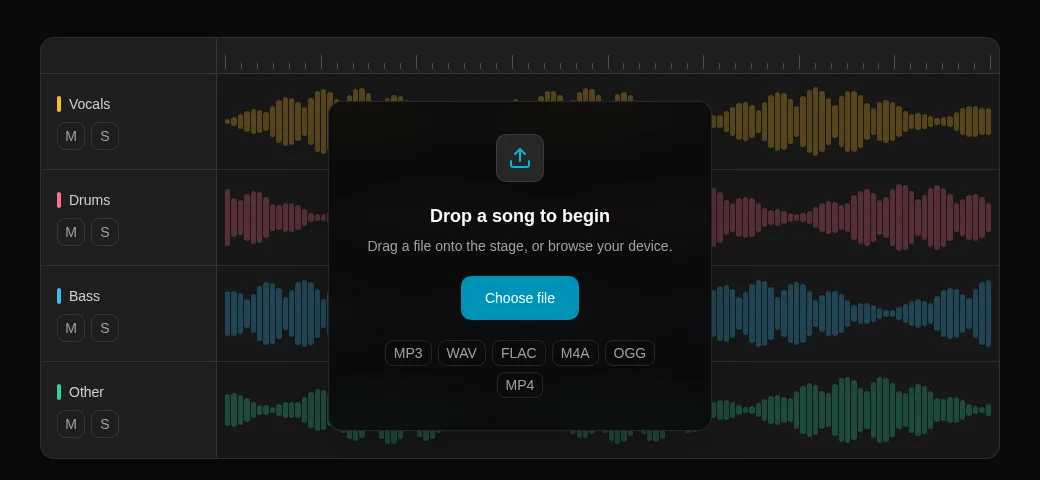
Drag your file onto the big stage at the top of the page, or tap Choose file and pick it from your phone or computer. MP3, WAV, FLAC, M4A, OGG and MP4 all work, so a music video is fine too. The sound gets pulled out of the video for you.
Step 2: Pick Quick or Full
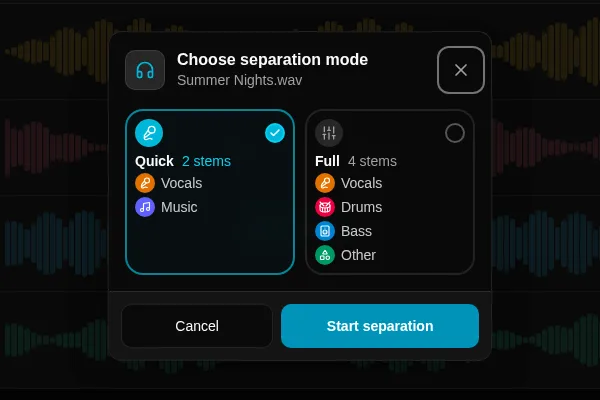
A small window pops up and asks how you want it split. Quick gives you two tracks, the vocals and the music. That is all you need to remove a voice. Full goes further and also splits drums, bass and everything else, which is nice if you want to play with the band.
Step 3: Give it a minute
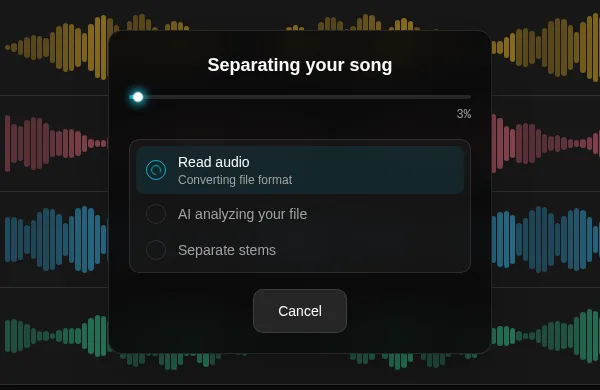
Hit Start separation and leave the tab open. You will see a progress bar and the step it is on. Longer songs take a bit more time, and a quiet cup of tea is usually enough.
Step 4: Switch the vocals off
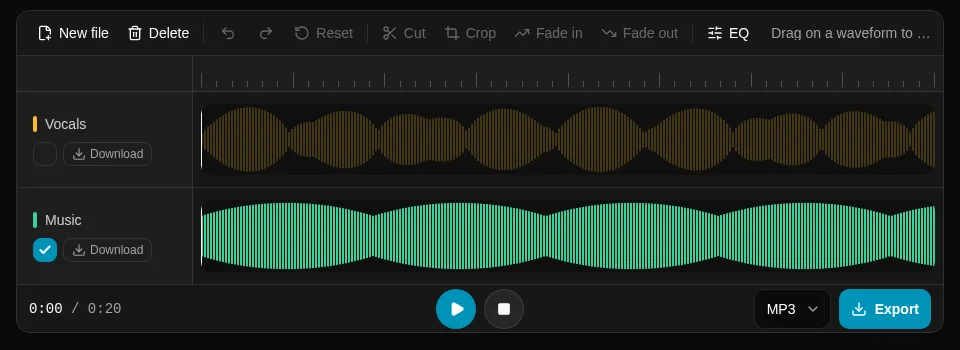
Now you land in the editor. Every track has a tick box. Untick Vocals and press Play. The singer is gone and the music keeps going. Tick it again whenever you want the voice back. Want only the voice instead? Untick Music.
Not happy with the sound? The EQ button lets you lift or cut the highs and lows, and there is a Download button next to each track if you only need one of them.
Step 5: Export your file
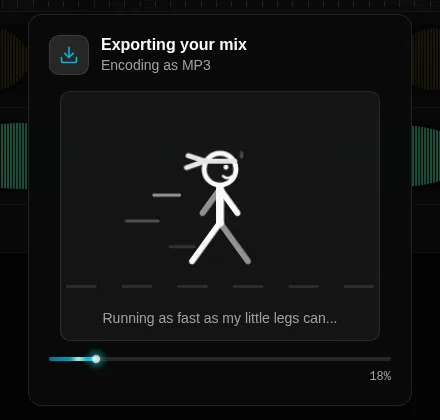
Choose MP3 or WAV next to the Export button and press it. Only the tracks that are ticked end up in the file, so you get a clean karaoke version without the singer. If you are putting it back on a video, WAV keeps the best quality.
That is it. If the result still has a faint voice in it, try a cleaner copy of the song, because the better the source file, the cleaner the split.
Voice remover - remove voice from song or video
Remove voice from a song
- Takes the voice out of any song and keeps the music.
- Works with MP3, WAV, FLAC, M4A and OGG files.
- Gives you the voice and the music as separate tracks.
- Mute, solo or tweak each track before you download.
- Free to use, with no sign-up and no watermark.
- Your file is processed in your browser, so it stays on your device.
- Works on phones, tablets and computers.
Remove voice from a video
A video is just a picture with a sound file inside it. We take that sound out, split the voice from the music, and hand both back to you.
- Drop in an MP4 and the sound is pulled out of it for you.
- Remove the singer from a music video, a concert clip or a karaoke upload.
- Keep the background music and the sound effects, lose only the voice.
- Handy for covers, dubbing, voice-overs and lip-sync videos.
- Download the clean audio as MP3 or WAV and put it back on your video.
- Short clips are quick, and longer videos just take a little more time.
Tips for videos
- Start with the best quality video you have. Cleaner sound gives a cleaner split.
- If your editor wants a separate audio track, choose WAV when you export.
- Speech over music splits well too, so it works for voice-overs and interviews.
Frequently asked questions
How do I remove vocals from a song for free?
Upload your song, choose what you want to split, and press the start button. In a short while you get the voice and the music as separate tracks. Mute the voice, download the music, and you have your instrumental. It is free and needs no sign-up.
Can I remove the voice from a video?
Yes. Drop in an MP4 and the sound is taken out of it and split into voice and music. Download the clean audio as MP3 or WAV and put it back on your video in any editor.
Is this vocal remover really free?
Yes, it is free to use. There is no account to create, no watermark on your files, and no limit on how many songs you can try.
Which file formats can I use?
You can upload MP3, WAV, FLAC, M4A and OGG audio files, and MP4 for video. You can download your result as MP3 or WAV.
Is my file uploaded to a server?
No. Your file is processed in your own browser, so it stays on your device. Nothing is sent away for processing.
How good is the quality of the result?
The AI does a clean job on most songs. Start with the best quality file you have, because a cleaner source gives a cleaner split. In a few busy tracks you may hear a faint trace of the voice, and the built-in editor lets you fine tune the result.
Does it work on my phone or tablet?
Yes. The tool works on phones, tablets and computers, and every button is built for touch. Very long files are faster on a computer.